
The File System Access API (short: FSA API) allows web applications to access files and directories on the local file system. Depending on the permissions granted, they can read and modify files. To do so, the user must first grant access. It is precisely this interaction that opens up a potential attack vec-tor for attackers: They can attempt to use social engineering to trick users into granting a manipulated website access to a directory.
FSA API as an Attack Vector
The security researcher danieloz147 recently published a blog post titled "Rogue Sandbox - When the Scan Itself is the Payload". It describes how a user is lured to a website where they can supposedly have their computer scanned for malware by an "AV agent". In the background, the web server uses Windows' File System Access API to write to selected files. The user believes they have scanned their computer for viruses, but in reality, their files have been infected.
A relatively elegant solution that requires only a few clicks to gain initial access to a system. However, this approach also raises further questions: What other attack vectors does the FSA API offer if attackers not only modify executable files but also use other paths for initial access, persistence, or file injection?
In this article, I analyze Chrome's Windows-specific protection mechanisms based on the publicly available Chromium source code. I also examine which directories and files are accessible via the FSA API and demonstrate specific attack vectors – ranging from credential theft and VSCode extension injection to PowerShell manipulation and file drops. Finally, I derive specific recommendations for detection, prevention, and security testing in enterprises.
The analysis is based on tests conducted in July 2026 on Windows 11 using Chrome 150.0.7871.101 and Edge 150.0.7871.101. The implementation details examined relate to Chromium. Other operating systems and browser configurations may have different protection mechanisms and are not covered by this analysis.
Definition of the File System Access API (FSA API)
The File System Access API (FSA API) allows a website to request a handle to a directory on the user's local file system. When called in readwrite mode, the website gains full read and write access to (almost) every file and subdirectory in the selected folder with a single call. What makes this unique is that the handle remains valid indefinitely – without a timeout or the need for re-authentication – as long as the tab is open.
The following JavaScript can be used for this:
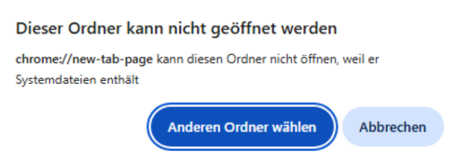
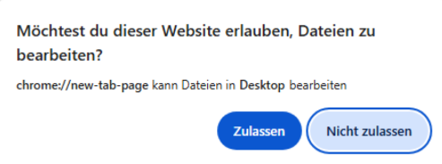
Both Chrome and Edge (based on Chromium) display a file dialog and, after the user confirms, a second permission prompt asking whether the website is allowed to access files. Once permission is granted, the website can list, read, create, overwrite, and delete files.
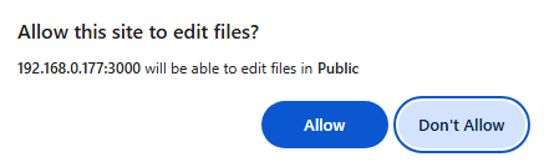
This is by design. The API was developed for web-based IDEs, media editors, and productivity tools. From a red-team perspective, however, this means that after just two user clicks (selecting the folder and granting permission) on the website, a handle to the files is obtained.
Google has, however, implemented several restrictions and security measures in this regard. Most notably, Chrome's blocklist, which consists of paths and rules that the browser checks before granting access. If the selected path matches a blocked entry, Chrome rejects it with the error message "This folder contains system files".
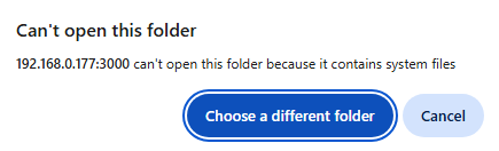
Now, of course, it's interesting to know what's on this blocklist, how the matching works, and whether certain paths slip through the cracks. Since Chromium's source code is open source (https://source.chromium.org/chromium), that was the first place to check.
How Chrome Blocks File System Access
When a user selects a directory (or accesses a website via showDirectoryPicker()), Chrome checks the selected path against a blocklist before returning a handle. The call chain looks as follows:
All of this can be found in:
Below, the individual levels are analyzed.
ConfirmSensitiveEntryAccess
ConfirmSensitiveEntryAccess is the entry point for all blocklist checks. The function accepts a PathInfo, a HandleType (file or directory), a UserAction (picker, drag-and-drop, or save), and a callback. There is no user_action branch in the blocklist check. The same rules apply regardless of whether the user selected a directory via the file picker, dragged it in, or used the save dialog. This means there is no picker-specific blocking that could be bypassed by drag-and-drop for directories. (The situation is different for files, see Special Case 2: File Access via Drag-and-Drop.)
CheckPathAgainstBlocklist
The CheckPathAgainstBlocklist method loads the blocklist and adds two additional rules at runtime for the Chrome user data directory, which is resolved from the active profile:
These are not included in the static blocklist but are calculated for each request based on the profile path of the running Chrome instance. This is how Chrome blocks its own configuration directory, even if it was launched with a custom --user-data-dir.
GenerateBlockPaths
The static blocklist is created once by GenerateBlockPaths() and cached. This function defines each blocked path and its block type.
The Complete Windows Blocklist
The blocklist uses four blocking strategies, defined as BlockType-Enum:
kBlockAllChildren: The directory and everything below it is blocked. Access is not possible at any level.kDontBlockChildren: The directory itself cannot be selected, but its "children" (subdirectories, files) are allowed.kBlockNestedDirectories: Files can be opened, but nested subdirectories cannot.kBlockWrite: Read access is allowed, but write access is blocked (enforced only forkSaveoperations).
Below is a list of the blocklist for Windows, which was extracted from GenerateBlockPaths() in the Chromium source code (as of July 2026; this list is not intended to be exhaustive):
| Path constant | Resolves to | BlockType |
| DIR_HOME | C:\Users\<user> | kDontBlockChildren |
| DIR_USER_DESKTOP | ...\Desktop | kDontBlockChildren |
| DIR_USER_DOCUMENTS | ...\Documents | kDontBlockChildren |
| DIR_DEFAULT_DOWNLOADS | ...\Downloads | kDontBlockChildren |
| DIR_ROAMING_APP_DATA | ...\AppData\Roaming | kBlockAllChildren |
| DIR_LOCAL_APP_DATA | ...\AppData\Local | kBlockAllChildren |
| DIR_COMMON_APP_DATA | C:\ProgramData | kBlockAllChildren |
| DIR_PROGRAM_FILES | C:\Program Files | kBlockAllChildren |
| DIR_PROGRAM_FILESX86 | C:\Program Files (x86) | kBlockAllChildren |
| DIR_WINDOWS | C:\Windows | kBlockAllChildren |
| DIR_HOME + .ssh | ...\.ssh | kBlockAllChildren |
| DIR_HOME + .gnupg | ...\.gnupg | kBlockAllChildren |
| DIR_EXE | Chrome installation directory | kBlockAllChildren |
| DIR_MODULE | Chrome module directory | kBlockAllChildren |
| DIR_ASSETS | Chrome assets directory | kBlockAllChildren |
| DIR_USER_DATA | Chrome profile data | kBlockAllChildren |
| DIR_IE_INTERNET_CACHE | IE/Edge temporary files | kBlockNestedDirectories |
| */.git/hooks | Every .git/hooks directory | kBlockWrite |
Below are two runtime rules from CheckPathAgainstBlocklist, both of which are kBlockAllChildren:
profile > GetPath().DirName(): the parent directory of the active Chrome profileprofile_manager() > user_data_dir(): the root directory of Chrome user data
During the research, no additional paths were identified (though this does not mean they could not exist elsewhere in the source code). Nevertheless, tests paint the following picture: If a path is not listed in this table and is not an ancestor of a blocked path, Chrome grants access to it. For example, ...\AppData\Local is blocked, but ...\AppData\LocalLow is allowed.
The Matching Algorithm
The matcher in ShouldBlockAccessToPath() iterates through each rule and uses a "nearest ancestor wins" strategy. The following is a simplified version of the logic from the source code:
The "nearest ancestor wins" rule is crucial. If multiple block rules apply (a parent directory and a child directory both have rules), the most specific (deepest) rule takes precedence. This is how Chrome creates "holes" in otherwise blocked subtrees that attackers can exploit. The following overview also illustrates this.
Matching Examples
| Selected path | Matching rule | Result |
| C:\Users\alice | path == DIR_HOME | BLOCKED (exact match) |
| C:\Users\alice\Desktop | path == DIR_USER_DESKTOP | BLOCKED (exact match) |
| C:\Users\alice\Desktop\Projects | nearest ancestor: DIR_USER_DESKTOP | ALLOWED (kDontBlockChildren) |
| C:\Users\alice\.vscode | nearest ancestor: DIR_HOME | ALLOWED (kDontBlockChildren) |
| C:\Users\alice\AppData\Roaming\Discord | nearest ancestor: DIR_ROAMING_APP_DATA | BLOCKED (kBlockAllChildren) |
| C:\Users\alice\.ssh | path == DIR_HOME + .ssh | BLOCKED (exact match) |
What Is Accessible and Why
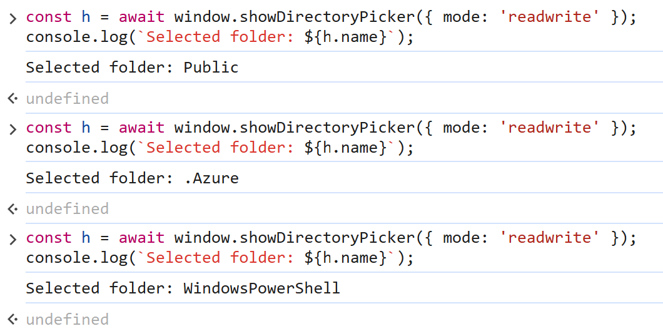
The blocklist is based on two principles: protecting system directories and application data (kBlockAllChildren), but allowing user-generated content within known user folders (kDontBlockChildren). The gap between these two strategies creates various paths and, consequently, attack vectors that are fully accessible to any website that can trick a user into clicking "Allow".
The paths listed below have been confirmed to be accessible on Windows 11 (Chrome 150.0.7871.101 and Edge 150.0.7871.101; July 2026) through manual testing.
Note: This list is not exhaustive and is intended only to provide examples of the types of access that are possible.
| Path | Why accessible | What can be found there (examples) |
| .vscode\ | Child of DIR_HOME (kDontBlockChildren) | Extensions, .env files, argv.json |
| .Azure\ | Child of DIR_HOME | Cached Azure tokens, tenant/subscription IDs |
| .config\ | Child of DIR_HOME | Git credentials, application configurations |
| .dotnet\ | Child of DIR_HOME | Machine fingerprint, SDK configurations |
| .nuget\, .local\, .ms-ad\ | Child of DIR_HOME | Package caches, local state |
| Documents\WindowsPowerShell\ | Child of DIR_USER_DOCUMENTS (kDontBlockChildren) | PowerShell profile, modules, scripts |
| C:\Users\Public\ | Not the active user profile; no rule applies | Public desktop, documents (visible to all users) |
| SMB/network shares | Not under a blocked path | Company file shares, project directories |
| OneDrive\ / OneDrive - TENANT\ | Child of DIR_HOME | All synchronized files. With KFM: desktop (see Special Case 1: OneDrive as a Path of Attack) |
Note: Until 2022, it was possible to partially bypass the filter by using UNC paths for local directories. However, this bug has since been fixed (see https://issues.chromium.org/issues/40059686).
The design intent is clear: kDontBlockChildren in the user profile means "don't let a website access everything, but let users share specific folders". The assumption is that a user who selects .Azure or .vscode understands what they are sharing.
Concrete Attack Paths Using the FSA API
The previous analysis shows which directories are accessible. This section demonstrates specific attacks that are possible using the File System Access API. The attacks range from the exfiltration of sensitive data to persistence and lateral movement.
Exfiltration: Stealing Credentials and Secrets
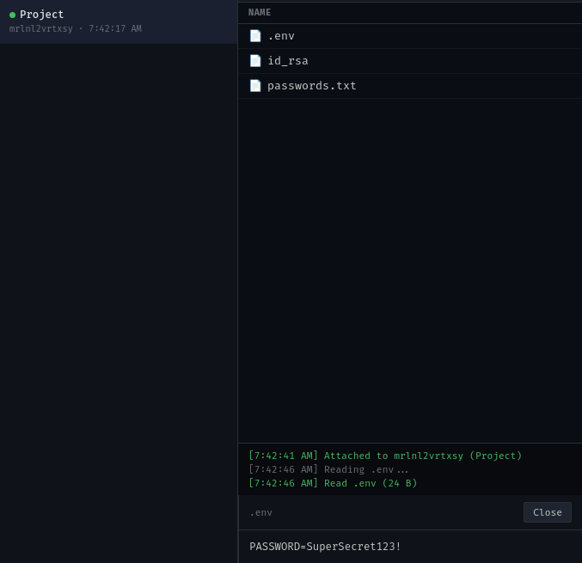
As soon as a user selects a folder, the website can recursively search through all files and specifically exfiltrate high-quality content. Since the FSA API allows arbitrary navigation within the selected directory, a single click on a parent folder is all it takes.
Examples for sensitive data:
| Path | Content |
| .Azure\AzureRmContext.json | Cached Azure access tokens, tenant IDs, and subscription IDs |
| .Azure\TokenCache.dat | Persistent Azure authentication tokens |
| .vscode\.env | API keys, database passwords, secrets |
| .dotnet\MachineId | Machine fingerprint |
| OneDrive\Desktop\passwords.txt | Passwords stored by the user |
Simplified example – recursive search for credentials:
Persistence: Adding Malicious VSCode Extension
The following describes one of the most reliable persistence mechanisms via the FSA API. VSCode extensions are JavaScript files that are loaded by VSCode's embedded Node.js process. A MotW (Mark of the Web) has no effect on the execution, since Node.js simply does not check the Zone.Identifier Alternate Data Stream (ADS).
The attack places a fake extension in the .vscode/extensions/ directory:
package.json registers the extension for immediate activation:
The command to run the calculator is passed within extension.json:
The beacon runs within the VSCode process. EDR solutions that monitor process creation only see the normal code.exe process.
Even a C2 beacon written in JavaScript can be embedded as an extension:
For more information on creating C2 beacons in JavaScript, please refer to this excellent blog post: https://c0rnbread.com/playing-a-different-game-rethinking-modern-defense-evasion/.
Note: Of course, the user must grant access to the specific folder for this type of persistence. In this case, that would be the folder .vscode/extensions/.
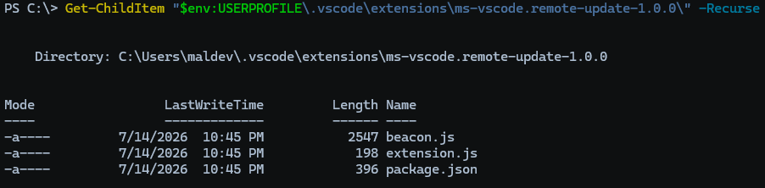
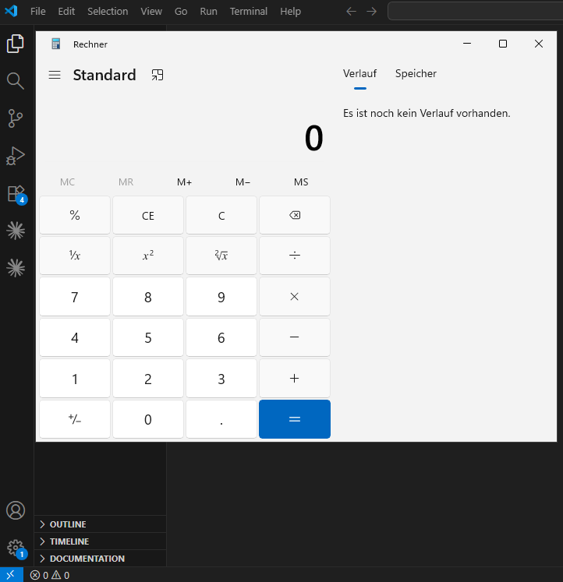
To encourage the user to share a specific folder, startIn can also be used. This allows the user to see, for example, the Documents folder as a starting point, which reduces the number of clicks required.
Persistence: Overwriting the PowerShell Profile
Note: The following persistence mechanism works only with the Execution Policy Bypass or Unrestricted.
Documents\WindowsPowerShell\ is directly accessible via the FSA API, even though Documents\ itself is blocked as "system files". The matching algorithm allows this because DIR_USER_DOCUMENTS has the type kDontBlockChildren: The directory itself is blocked, but named subfolders are allowed.
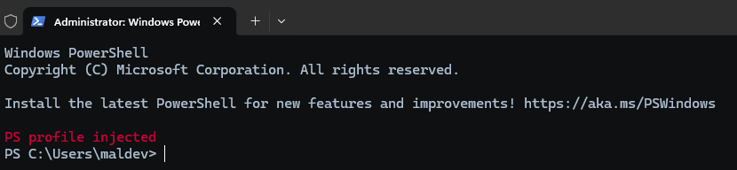
The attack creates or overwrites the file Microsoft.PowerShell_profile.ps1. This file is automatically loaded every time a PowerShell session is started:
As mentioned earlier, there is a restriction imposed by a MotW: The file written via the FSA API is automatically assigned the identifier ZoneId=3. Under the RemoteSigned execution policy (default on Windows 11), PowerShell refuses to execute the file, throwing a PSSecurityException with the following message:
This attack vector therefore only works if the execution policy is set to Bypass or Unrestricted. However, this is common in development environments or on build servers.

Persistence: Adding a PowerShell Module Backdoor
Note: This also works only with the Execution Policy Bypass or Unrestricted.
In Documents\WindowsPowerShell\Modules\, there are installed PowerShell modules such as Az.Accounts, Microsoft.Graph, or custom modules. These are also accessible via the FSA API.
The attack modifies the entry point of an installed module (the .psm1 file) by prepending beacon code:
The Beacon runs as soon as the module is imported.
File Drops: Placing Malicious Files on the Public Desktop
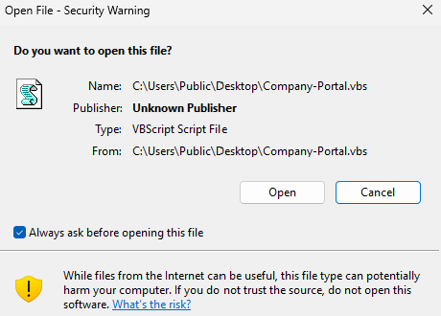
C:\Users\Public\Desktop ist über die FSA API zugänglich und unterliegt keiner Blockregel, da es nicht das PrC:\Users\Public\Desktop is accessible via the FSA API and is not subject to any blocking rules since it is not the profile directory of the active user. Files placed here appear on the desktop of all users. This includes, for example, local users, domain users, Azure AD users, etc.
Examples of files that could be placed on the desktop:
- Company-Portal.vbs: VBScript payload
- IT-Update.bat: Batch downloader
All of these files trigger a warning when double-clicked, since FSA write operations always set a MotW. However, experience shows that a certain percentage of users acknowledge this warning, especially if the filename suggests a plausible business context.
For example, a payload can be written as follows:
File Drops and Lateral Movement via SMB Network Shares
SMB network shares are fully accessible via the FSA API. There is no "system files" block. When a user selects a network share in the file picker, the website gains read and write access to the entire share structure.
The implications can be significant. Attackers can place payloads in shared project folders or automatically extract sensitive files.
The FSA API applies a MotW (ZoneId=3) to every file written, including those on network shares. The intranet zone of the share does not override the ADS that has already been stamped. This has two consequences:
- New files (such as .vbs or .exe) receive a MotW and trigger a security warning when double-clicked, just as they would when executed on a local system.
- Modified existing files (such as .ps1 or .bat) now receive a MotW where none existed before. Under RemoteSigned, this can prevent previously trusted scripts from running and alert the user.
The lateral movement risk associated with network shares therefore lies primarily in the exfiltration of sensitive files or in the placement of new scripts in trusted locations and in environments with the Execution Policy Bypass or Unsigned.
Special Case 1: OneDrive as a Path of Attack
Microsoft's OneDrive Known Folder Move (KFM) is an enterprise feature that is deployed via Intune or Group Policy in most Microsoft 365 organizations. When enabled, it redirects the user's Desktop, Documents, and Downloads to the OneDrive sync folder:
Chrome's blocklist dynamically resolves DIR_USER_DESKTOP, DIR_USER_DOCUMENTS, and DIR_DEFAULT_DOWNLOADS using SHGetKnownFolderPath(). When KFM is active, these paths resolve to the redirected paths within the OneDrive folder. Chrome should correctly block these redirected paths. However, this is not always the case, as shown below.
Test Results (Windows 11, Chrome, OneDrive Business With KFM Enabled; July 2026)
| Path | Result | Explanation |
| OneDrive - <TENANT> (root directory) | BLOCKED | Ancestry check: includes blocked documents |
| OneDrive - <TENANT>\Desktop | ALLOWED | Stale blocklist bypass (see below) |
| OneDrive - <TENANT>\Documents | BLOCKED | Exact match with DIR_USER_DOCUMENTS |
| OneDrive - <TENANT>\Attachments | ALLOWED | No block rule |
| OneDrive - <TENANT>\Images | ALLOWED | No block rule |
| OneDrive - <TENANT>\TestProject | ALLOWED | No block rule |
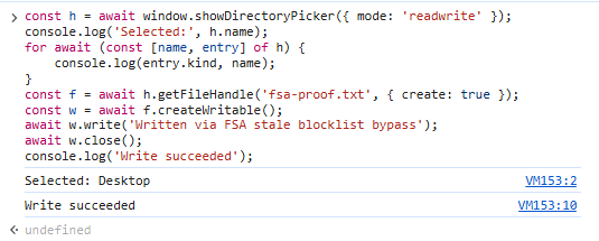
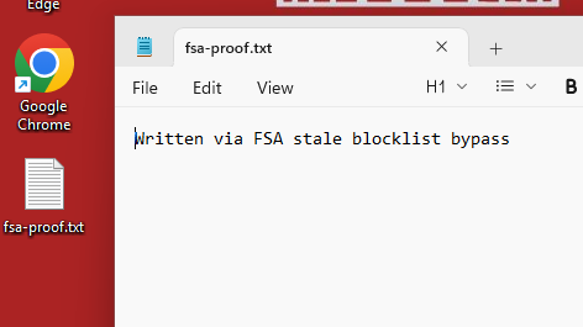
The FSA API can therefore also be used for read and write access in OneDrive. For example, a test file (fsa-proof.txt) was successfully written to the desktop via the browser and appeared both on the desktop and in the OneDrive sync.
Bypass: Stale-Blocklist nach KFM-Aktivierung
Note: The bypass has been reported to Google. Google has made the issue public (see https://issues.chromium.org/issues/534049460?pli=1).
The bypass can be reproduced and is based on a fundamental characteristic of the blocklist architecture: GenerateBlockPaths() is called once, and the result is cached. If the path of a known folder changes after the blocklist is created, the new path is not protected.
Steps to reproduce:
- Set up OneDrive with KFM on Windows (for example, via M365 for Enterprise).
- Disable Desktop backup to OneDrive (Desktop is therefore located locally at C:\Users\alice\Desktop).
- Launch Chrome. GenerateBlockPaths() runs, base::DIR_USER_DESKTOP is resolved via SHGetFolderPath(CSIDL_DESKTOPDIRECTORY). Desktop still points to C:\Users\alice\Desktop. This path is normalized and cached in the blocklist.
- Enable Desktop backup to OneDrive. KFM moves Desktop to OneDrive - <TENANT>\Desktop. The old local path is deleted.
- Without restarting Chrome, call showDirectoryPicker({ mode: 'readwrite' }) via the console, navigate to OneDrive - <TENANT> , and select Desktop there.
- Chrome checks OneDrive - <TENANT\Desktop against the cached blocklist. The cached entry is C:\Users\alice\Desktop (the old local path). There is no match for this. The nearest ancestor is DIR_HOME (kDontBlockChildren). For this reason, access is allowed.
Note: For unknown reasons, this behavior was observed for Desktop but not for Documents.
Source Code Analysis
The analysis of the Chromium source code confirms the problem, as shown below.
Blocklist Creation
GenerateBlockPaths() normalizes the paths once.
Blocklist Check
ShouldBlockAccessToPath() normalisiert den vom Benutzer gewählten Pfad, aber nicht die gecachten Blocklist-Einträge.
Normalisierung
NormalizeFilePath() opens the directory and calls GetFinalPathNameByHandle().
Core Issue
The blocklist is a snapshot of the paths at the time it was created. If CSIDL_DESKTOPDIRECTORY changes (due to KFM activation), the blocklist is not updated. The new desktop path is unprotected.
Chrome confirms the block via browser logging:
When the bypass takes effect, there is no log output (the path does not match any rule).
Why This Might Only Be Reproducible for Desktop
The bypass works reliably on Desktop, but not on Documents. Both use the same mechanism (SHGetFolderPath with SHGFP_TYPE_CURRENT), but on Documents, Chrome apparently resolves the path again at the time of the check. This may occur due to dynamically added extra_rules or a regeneration of blocklist entries for certain path constants. The exact cause requires further debugging.
Impact
- If KFM is enabled for Desktop while Chrome is running, Chrome has an outdated blocklist. The new Desktop path within the OneDrive folder is accessible with full read and write access.
- Without KFM (or personal OneDrive): The OneDrive folder has no blocked descendants. Access is therefore permitted.
- Synchronized SharePoint libraries appear as separate folders in the profile root directory. These have no blocked descendants and are always accessible.
- Changes written via the FSA API are synchronized back to the cloud. As a result, malicious software can also affect other users.
Special Case 2: File Access via Drag-and-Drop
A separate bypass affects individual files in blocked directories. When a user drags a file onto a website, the site can obtain a file handle via getAsFileSystemHandle(). For files (not directories), this code path completely bypasses ConfirmSensitiveEntryAccess().
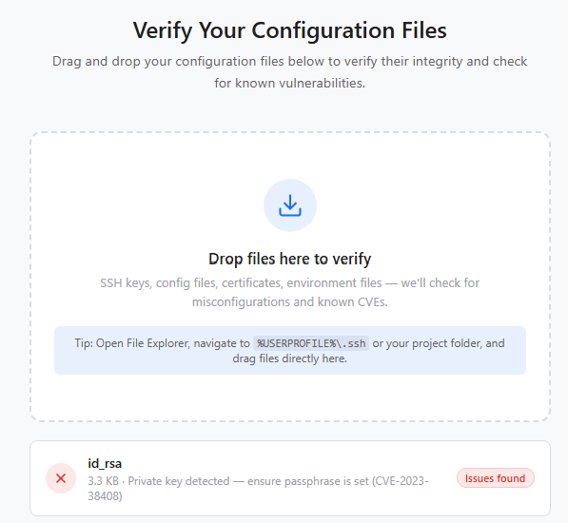
This allows files from .ssh, Desktop, AppData, and any other blocked directory to be read. A phishing website that prompts users to drag an SSH key or a configuration file for "verification" receives the full file contents without any Chrome security checks.
Google has understandably classified this behavior as "not a security issue". The reasoning is that the user explicitly imported the file (see https://issues.chromium.org/issues/516164715 and https://chromium.googlesource.com/chromium/src/+/main/docs/security/faq.md#I-found-a-local-file-or-directory-that-may-be-security_sensitive-and-is-not-blocked-by-File-System-Access-API-is-this-a-security-bug).
Mark of the Web: Impact on Attack Paths
As previously shown, every file written via the File System Access API receives a Mark of the Web (MotW) – that is, a Zone.Identifier Alternate Data Stream (ADS) with ZoneId=3 (internet). This is not optional and cannot be removed via the API (filenames containing a ":" are rejected with the error "Name not allowed").
Impact on the Attack Paths Investigated
| Attack path | MotW impact | Does it work? |
| VSCode extension injection | Node.js completely ignores MotW | Yes, under any policy |
| PowerShell profile | PSSecurityException under RemoteSigned | Only for Bypass or Unrestricted |
| PowerShell module backdoor | Crashes Authenticode + MotW block | Only for Bypass or Unrestricted |
| Public desktop drops (.vbs, .bat, .exe) | Security warning dialog | Yes, if the user confirms |
| SMB network shares (new files) | MotW is set; security warning for .exe, .vbs, .bat files | Yes, just like when saving files to the local file system |
| Network shares (existing scripts) | MotW is added, may interrupt execution | Yes, but risky because it might draw attention |
Forensic Artifact
The ReferrerUrl and HostUrl fields in the Zone.Identifier ADS contain the origin of the page that wrote the file. The C2 domain is permanently stored in the ADS of every written file and can be used as a clear forensic indicator.
Interactive File Proxy: FSA API as a C2 Channel
A key aspect of the File System Access API is that the directory handle has no timeout. As long as the browser tab remains open, the website retains full access to the selected directory. There is no mechanism in the API that revokes access after a certain period of time.
Furthermore, the handle can be persisted via IndexedDB. If the user closes the tab and reopens the page later, the stored handle can be restored. The user only needs to confirm once in a dialog that they wish to grant access again, without having to go through the file picker once more.
This feature can be extended using a WebSocket connection to an interactive file system proxy. Some operations are illustrated below in a sequence diagram.
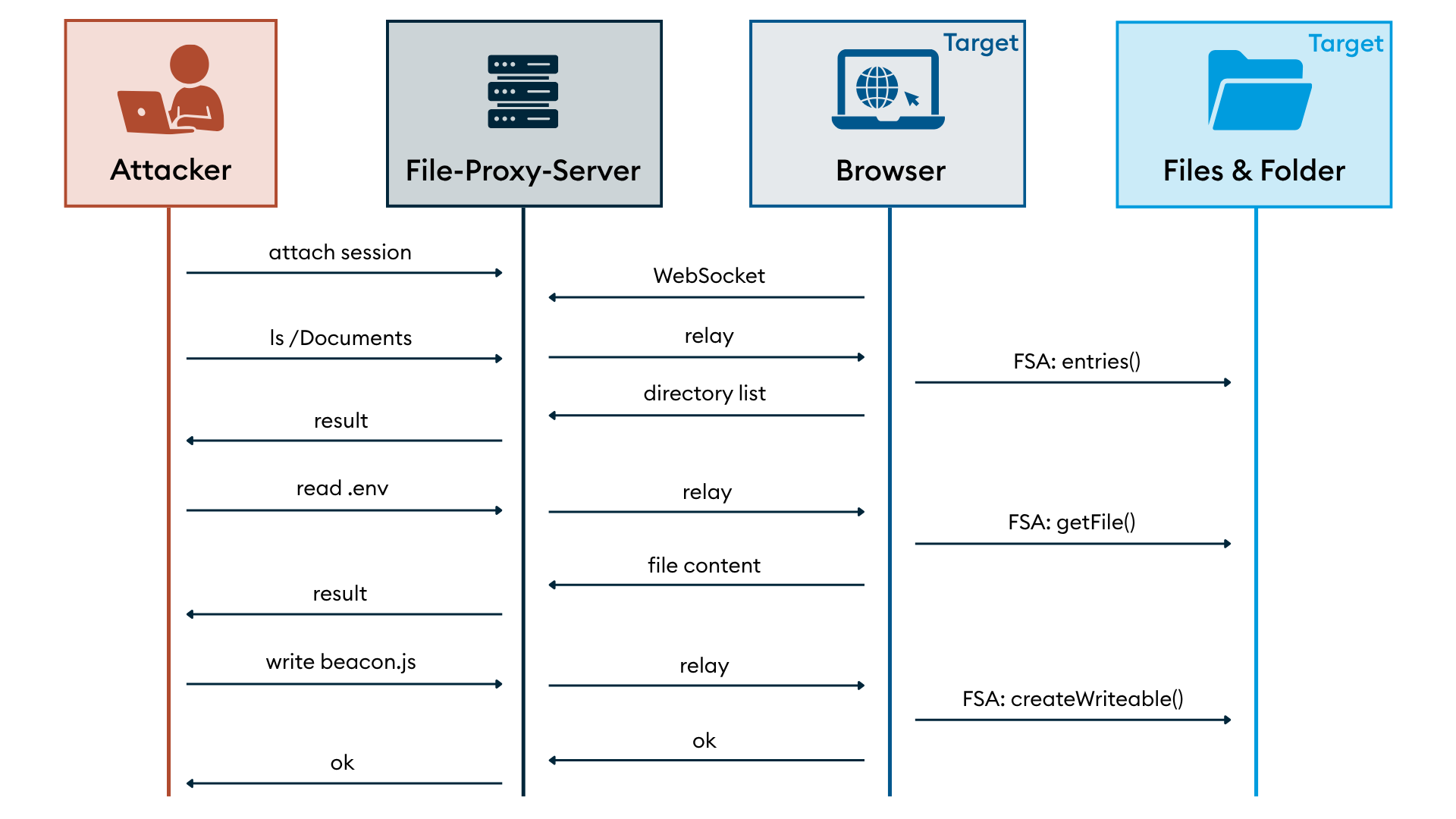
Based on this, a simple "file proxy C2 server" can be built to simplify file handling.
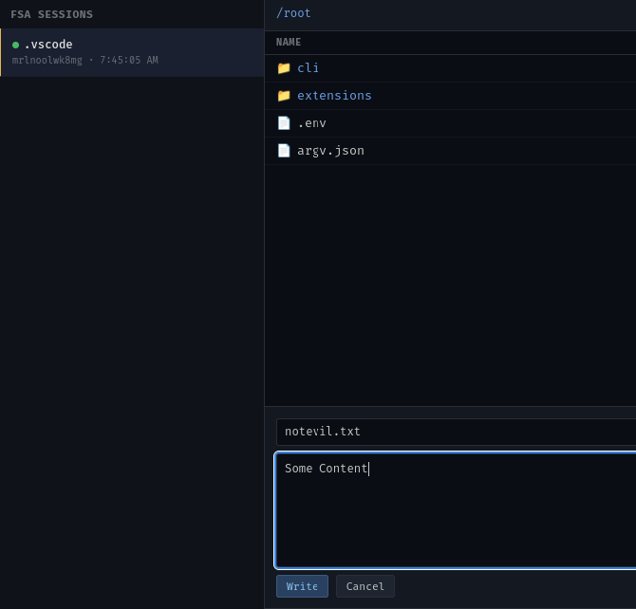
The browser acts as a transparent file proxy. The operator can use a web interface to browse the victim's shared file system in real time, as well as read, edit, and delete files, or write new files. This works as long as the user does not close the tab. The existing WebSocket connection can be used for this purpose without requiring the installation of an agent or executable file on the target system.
The key advantage over traditional post-exploitation frameworks is that no process runs on the target system. All file access occurs within the Chrome process via a legitimate web API. EDR solutions only detect that Chrome is reading and writing files – an activity that is completely normal for web applications such as Google Docs or VSCode for Web.
To encourage the user to keep the tab open, once the apparent action (e.g., "file migration") is complete, the pretext website displays a spinner with the message "Your files are being processed – please do not close this tab". As long as the user does not actively close the tab, file access remains active.
What Companies Can Do to Defend Against Attacks via the FSA API
An analysis of the File System Access API (FSA API) shows that the Chrome blocklist restricts access to sensitive directories but cannot prevent all instances of malicious file access. What matters is not only which paths the browser blocks, but also which files and directories remain accessible after a user grants permission and how attackers can exploit them for further actions.
The attack vectors examined illustrate that the FSA API should be incorporated into corporate security strategies as a potential initial access vector. Depending on the accessible directory, attackers may attempt to extract credentials and secrets, establish persistence via development or PowerShell configurations, or drop files in shared directories.
Therefore, it is not enough for organizations to rely solely on the browser's built-in security mechanisms. Companies should detect suspicious file modifications, specifically restrict file system access through browser policies, and raise employee awareness about manipulated directory selection prompts.
Detection and Prevention: Recommendations for Security Teams
- Monitoring Mark of the Web: Investigate changes to the Zone.Identifier Alternate Data Stream (ADS) in files located in relevant directories such as .vscode\extensions, PowerShell profile paths, and OneDrive directories. The ReferrerUrl field – if present – can provide clues about a file's origin.
- Reviewing browser policies: Restrict file and directory access via Chrome Enterprise policies for read and write access. This includes, in particular,
FileSystemReadAskForUrls, FileSystemWriteAskForUrls, and the respective AskForUrls policies. - Detecting suspicious changes: Develop detection rules for unexpected changes to PowerShell profiles, VSCode extensions, and other files suitable for persistence. If the telemetry in use allows it, suspicious browser activity and subsequent file changes should also be correlated.
- Securing script execution: Check AppLocker or Windows Defender Application Control (WDAC) to restrict unauthorized scripts and applications. The rules must match the actual execution environment. Simply being stored in a OneDrive directory is not a sufficient criterion for blocking.
Recommendations for Organizations
- Raising employee awareness: Include prompts from websites asking users to select a folder or grant access to local files as a potential social engineering vector in awareness training sessions.
- Considering OneDrive and Known Folder Move: Check which sensitive data is stored in synchronized directories and which protection mechanisms apply to these files. OneDrive should not be portrayed as inherently insecure. What matters is the combination of accessible files, permissions, and downstream security controls.
- Managing browser policies centrally: Restrict file system access in Chrome and Edge in accordance with organizational requirements. Policies should be tested and reviewed regularly to ensure that security requirements and legitimate workflows remain compatible.
- Testing detection and response: Verify that the SOC can detect and appropriately handle suspicious file modifications, tampering with development environments, and unusual persistence mechanisms.
- Monitoring Mark of the Web: Investigate changes to the Zone.Identifier Alternative Data Stream (ADS) in files located in relevant directories such as .vscode\extensions, PowerShell profile paths, and OneDrive directories. The ReferrerUrl field – if present – can provide clues about a file's origin.
Testing Security Measures and Empowering Employees
The potential attack vectors of the File System Access API demonstrate that technical safeguards alone are not sufficient. Companies must strengthen both their detection and response capabilities and their employees' security awareness. Targeted security testing helps identify vulnerabilities and verify the effectiveness of existing measures.
- Red Teaming simulates targeted attacks on a company to uncover vulnerabilities and gaps in the security architecture. Within the framework of an agreed-upon scenario, this process tests whether attackers could bypass additional protective mechanisms via browser-based attack vectors and achieve their objectives.
- Purple Teaming brings together offensive and defensive security teams. Using specific attack techniques, it is possible to verify whether suspicious file changes are detected, the necessary telemetry is available, and the defined response processes function properly.
- Awareness Trainings teaches employees how to recognize social engineering attacks and respond appropriately. This also includes exercising caution when interacting with websites that prompt users to select a folder or grant access to local files. The goal is to identify and prevent risky interactions early on.
- Phishing Simulations help examine employee behavior in realistic attack scenarios and identify specific training needs. They complement awareness training by highlighting areas where additional awareness is required. However, a phishing simulation alone does not test the technical exploitation of the FSA API.